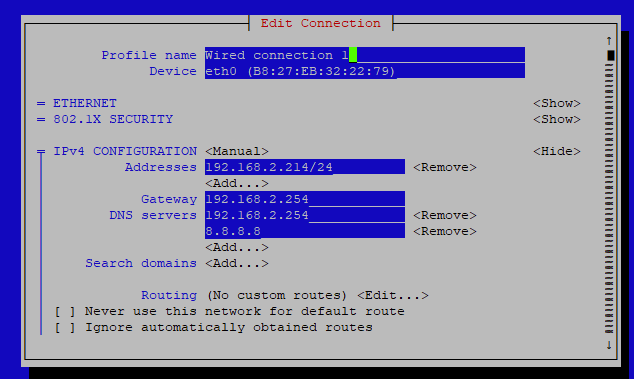
I got piaware 10.2 up and running! Looks like everything is working except the setting for my “wired and static” address. My piaware-config.txt calls for the following:
“wired-network” yes
“wired-type” static
The system comes up every reboot with an address of:
192.168.1.120
This happens no matter what the address is set to in my piaware-config.txt file. I know the program is picking the configuration file based on the default of “wireless” connection of “on” is “off” at startup. Since I have wireless turned off in my version of the configuration file.
I have set the static address to the following addresses at different times with reboot each time I made a change:
192.168.1.140, 192.168.1.160, and 192.168.1.99
The program always goes to the”120” address.
I have checked everything on Flightaware website and can find no info.
Any thoughts on this issue?
I have been running this same file without issues on my previous version of piaware of 8.2 without any issues.
Below is copy of my "piaware-config.txt file minus some items for security on this forum:
#
# This file configures the Piaware sdcard image
# configuration. Whenever the system boots, this
# file is read and its contents are used to
# configure the system.
#
# Lines beginning with a '#' are comment lines
# and are ignored. Blank lines are also ignored.
# All other lines specify configuration settings.
#

# For simplicity, this file only shows the most common options.
# For a complete list of options, see
# https://flightaware.com/adsb/piaware/advanced_configuration

#
# NETWORK CONFIGURATION
#

# By default, PiAware will use DHCP when connecting to your network.
# For other configurations, see the Advanced Configuration page
# linked at the top of this file.

# Should piaware use the wired ethernet port
# for network access?

wired-network yes

# Should piaware use a wifi adaptor for network access?
# If you are using a Pi 3, this will use the built-in wifi.
# Otherwise, you will need to attach a supported USB wifi adaptor.

# Wired network configuration:
# Most networks will use DHCP

wired-type static

# Alternatively, a static address configuration
# can be provided; set "wired-type" to static to use this.
wired-address 192.168.1.140
wired-netmask 255.255.255.0
wired-broadcast 192.168.1.255
wired-gateway 192.168.1.1
wired-nameservers 8.8.8.8 8.8.4.4


wireless-network no

# Wifi SSID and password.
# This should be changed to match your wireless
# network SSID and, for networks that require
# a passphrase, the passphrase.
#
# If your SSID or password contains characters other than
# numbers and letters, such as the # character or whitespace,
# you should enclose the value in quotation marks. For example,
# "pass word" or "pass#word".
#
# To include quotation marks (") in a quoted value, use \"
# To include a backslash (\) in a quoted value, use \\
# Wifi network configuration:
# Most networks will use DHCP

# Alternatively, a static address configuration
# can be provided; set "wireless-type" to static to use this.

wireless-ssid "XXXX XXXX"
wireless-password xxxxxxxxxx
wireless-type static
wireless-address 192.168.1.140
wireless-netmask 255.255.255.0
wireless-broadcast 192.168.1.255
wireless-gateway 192.168.1.1
wireless-nameservers 8.8.8.8 8.8.4.4

#
# 1090MHZ AND 978MHZ RECEIVER CONFIGURATIONS
#
feeder-id "deleted for security issues"

# For a complete list of receiver types and their associated settings,
# see the Advanced Configuration page linked at the top of this file.

# For a receiver type of 'rtlsdr', this setting controls the dongle gain.
# Use "max" for maximum gain. Other values are interpreted as a gain in dB.

#1090 RECEIVER CONFIGURATION
#
rtlsdr-device-index 00001090
#device_string = "driver=rtlsdr,serial=00001090"
rtlsdr-gain max


# 978MHZ UAT RECEIVER CONFIGURATION
uat-receiver-type sdr
uat-sdr-device 00000978
uat-gain max

#
# OTHER CONFIGURATION
#

# Should automatic system updates (initiated by FlightAware) be allowed?
allow-auto-updates yes

# Should manual system updates (initiated by you from the website control
# panel) be allowed?
allow-manual-updates yes

# Should PiAware enable multilateration where possible?
# You may need to disable this if multilateration overloads your receiver.
allow-mlat yes

# Should PiAware enable reception of Mode A/C messages when requested?
# You may need to disable this if processing Mode A/C overloads your receiver.
allow-modeac yes


# Additional settings can be added below.